Help
Turn on notifications
One tap, and your phone tells you when it's your turn.
On an iPhone
Install first. An iPhone only allows notifications from an app on your home screen, and it needs iOS 16.4 or newer. Do this first, then come back: put Brand School on your home screen
- Open Brand School from your home screen.
Tap Account, then Notifications.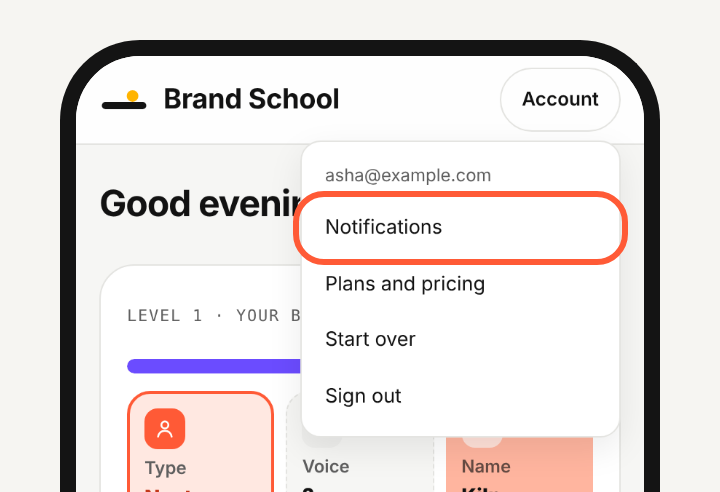
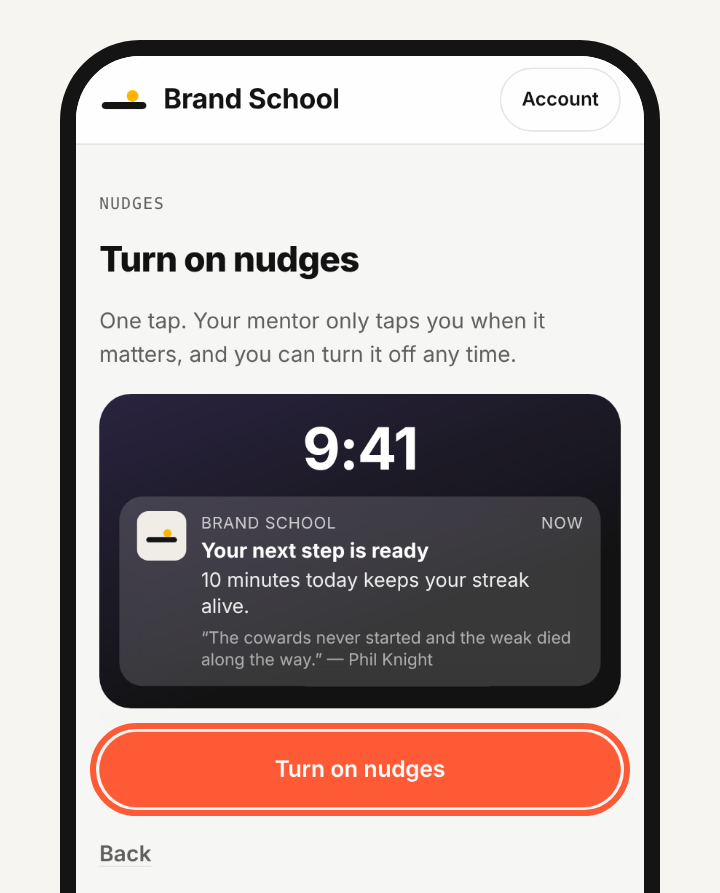
- Tap "Turn on nudges".
- Tap "Allow".
Your phone asks once.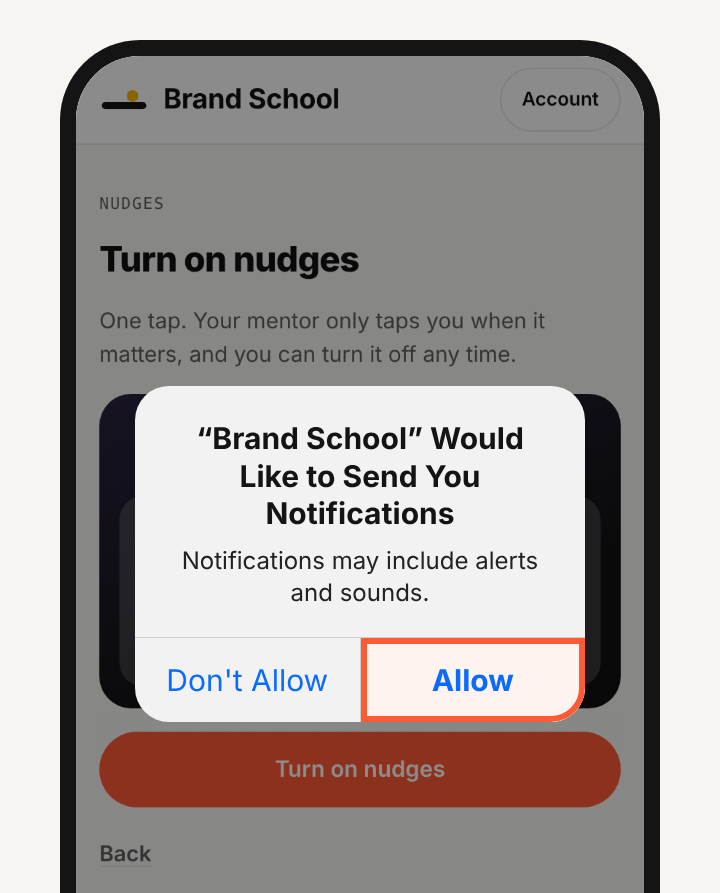
- Tap "Send me a test".
A message should land on your lock screen in a few seconds. That's it.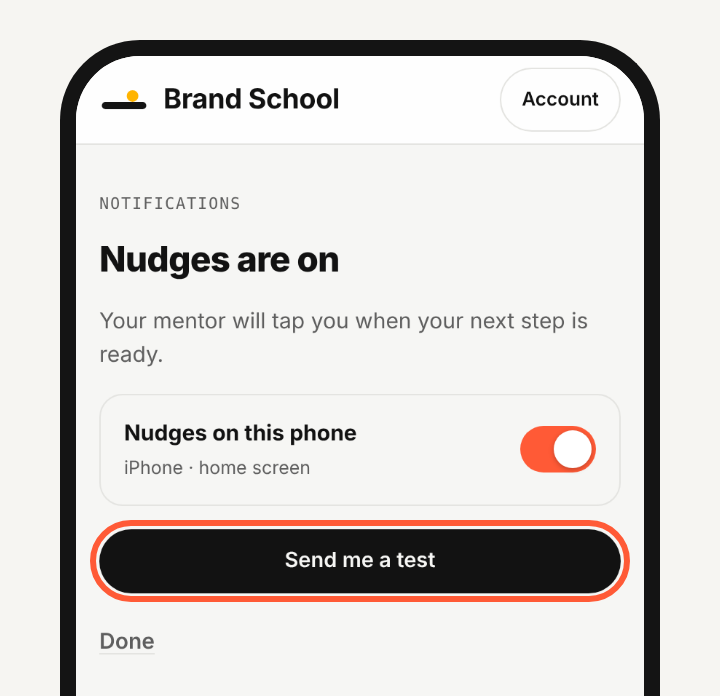
On Android
The same four taps. It works from Chrome too, so you don't have to install first (though installing is still nicer).
Turn it off
Open Account, then Notifications, and switch off Nudges on this phone.
No prompt, or nothing arrives?
On an iPhone, open Settings, then Notifications, then Brand School, and switch on Allow Notifications. Check that Focus or Do Not Disturb is off. Then try Send me a test again.
Need the install steps? Put Brand School on your home screen.